New TransGull Plus benefits: voice cloning and more translation voices

TransGull Team
Sep 19, 2026
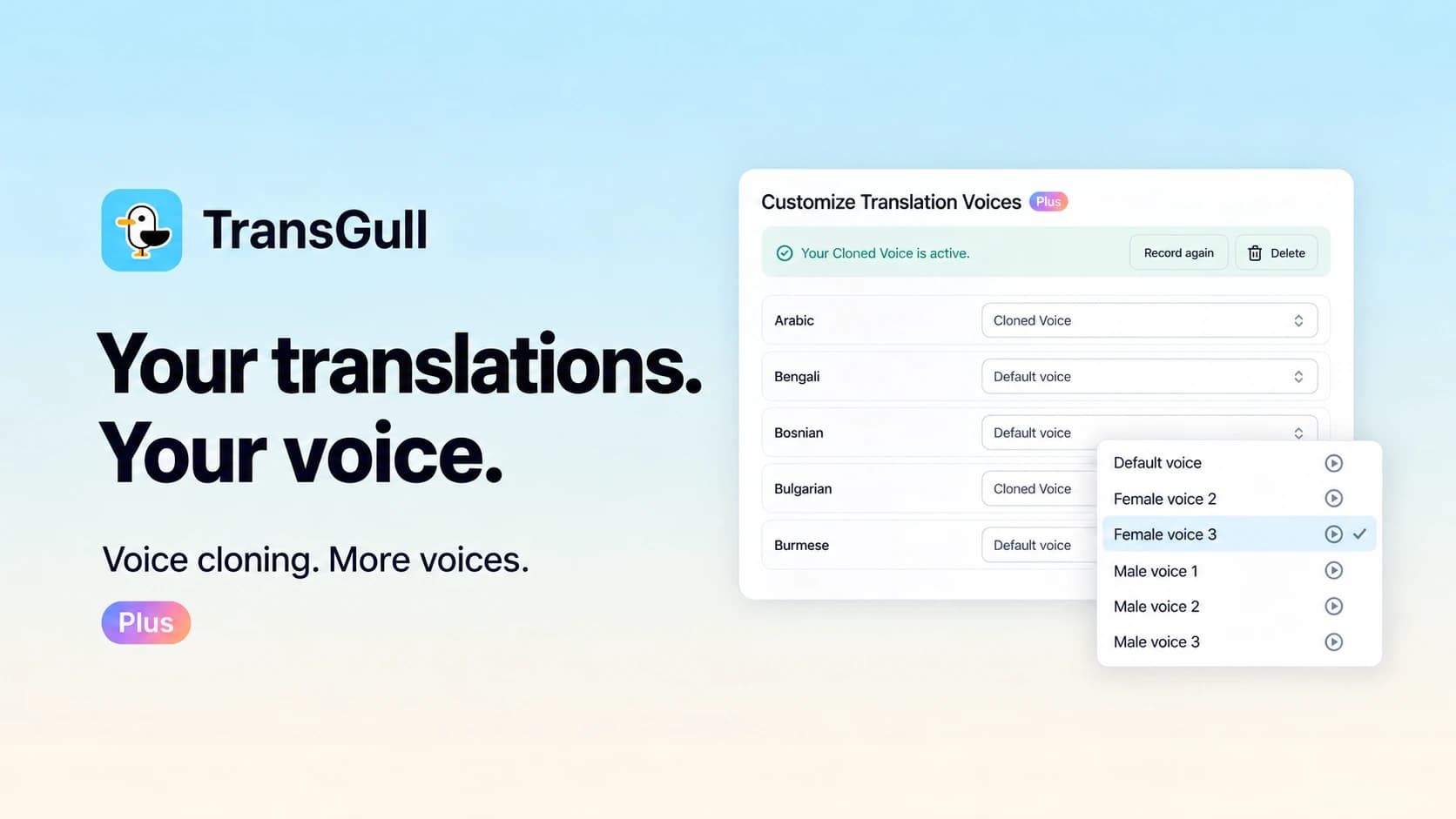
We’re excited to announce that TransGull now supports voice cloning, along with more voices for every language!
With voice cloning, you can have your speech translated into another language and played back in your own voice. You can also choose from our expanded selection of male and female voices to read translations aloud.
Voice cloning: speak 29 languages in your own voice
Follow the prompts to record a voice sample, and TransGull will create a cloned voice that can read translations in 29 languages. The setup takes just 3 minutes, and you only need to record in a language you know—there’s no need to record each language separately.
Once your cloned voice is ready, you can listen to a preview before deciding whether to activate it. For the recording, choose a quiet place and speak at your usual pace and in your natural tone.
Cloned voices are currently available for simultaneous interpretation, Selection Translation, Phone Call Translation, and the conversation translation and learning features on mobile. You can check the supported languages in “Customize Translation Voices.”
More voices for every language
Alongside voice cloning, we’ve added more voices for every language so you can choose how your translations sound.
You can set a different voice for each language. For example, you might choose a male voice for English and a female voice for Japanese, or use your cloned voice for supported languages. Preview each voice, then save the one you like.
These voices are ready to use. You don’t need to record a sample or create a cloned voice first.
Protecting your voice and privacy with responsible AI
Voice cloning offers a new way to communicate, and it needs to be used with care. We are committed to providing responsible AI services that respect your voice rights and protect your data and privacy.
As part of that commitment, we do not clone voices without authorization. Before creating a cloned voice, you must record a consent statement explicitly allowing us to create and use it. We carefully verify that the voice in your consent statement matches your voice sample. You can only authorize the creation of a clone of your own voice.
We also apply strict safeguards and technical restrictions to how cloned voices are used. Your cloned voice can only be used for translations initiated by your account, and only to read translated text aloud.
You can delete your cloned voice in Settings at any time. Once deletion is successful, the voice is immediately deactivated and we immediately delete the associated voice data.
How to get started
Mobile (iOS / Android)
- Open the TransGull app, go to “Me,” and tap “Customize Translation Voices.”
- Tap “Create now,” fill in the requested information, and allow the app to access your microphone.
- Record the consent statement and voice sample, then preview and activate your cloned voice once it is ready.
- Return to the voice settings page, tap the language you want to configure, and preview and select a voice.
If you only want to use one of our other voices, simply select a language and voice on this page. No recording is needed.
Desktop (Windows / macOS)
- Open the TransGull desktop app, click your account avatar, and select “Customize Translation Voices” from the menu.
- Click “Create now,” then follow the prompts to select your recording language and voice data processing region and enter the name of the person giving consent.
- Allow microphone access, record the consent statement and voice sample in turn, then create your cloned voice.
- After previewing and activating it, choose and save a voice for each language in the language list.
To change a preset voice, you can preview, select, and save it directly in the language list without creating a cloned voice. On the web, the same settings page is available from your account avatar menu.
Both new features are included with Plus. If you already subscribe to Plus, head to Customize Translation Voices to try them. If you haven’t subscribed yet, visit the Plus subscription page to learn more.
We hope you enjoy these new features! If you have any feedback on the voices or your experience using them, please let us know so we can keep improving.