How to Use a Video Subtitle Translator for Easy Bilingual Subtitles

Julian Mercer
Aug 7, 2026

You find a foreign-language interview that looks worth watching, but there are no English subtitles. You open the caption settings and discover that the video does not even have captions in its original language. Many people would close the video at this point, but they do not have to.
A video subtitle translator can work without a ready-made subtitle file. Translation software can listen to the speech in the video, create source and translated subtitles, and turn a course, interview, or explainer you could not understand into bilingual content you can keep watching.
No subtitles? You do not need to search for a subtitle file first
Imagine that you find a Japanese interview with no subtitles. You just want to understand it, not learn video editing first.
You can give the complete video to TransGull. It turns the spoken content into source subtitles, creates the English translation, and displays both lines in sync with playback. The result is straightforward: the original sentence stays visible, and the line below tells you what it means.
Add the video, then choose the language you want to read
Open TransGull’s Video Translation. If the video is on YouTube, copy and paste its link. If it is already saved on your phone or computer, choose the local video instead.
Confirm the language being spoken, then choose the language you want to read. When usable captions are available, you can keep them as the source. When there are no captions, choose AI speech recognition. Start the translation and let the video finish processing.
If you are using the feature for the first time and are unsure what to do next, open the Video Translation guides and follow the steps on screen.
When bilingual subtitles appear, the video becomes easy to follow
Open the completed video and the source and translated subtitles follow the scene. To hear a sentence again, click its subtitle and the video jumps to the matching timestamp. If the speech is fast or you want to listen closely, lower the playback speed. In a course, the translation helps you follow the lesson, while the source line remains available when a name or specialist term appears.
This feels more natural than reading a translation in a separate document. You do not have to jump between a video and a block of text, and you are less likely to lose track of which sentence belongs to which scene. That matters especially in interviews, tutorials, and longer educational videos where ideas build on what came before.
A useful sentence can become a quick language lesson
Some videos are worth more than one viewing. A practical phrase from a course, a natural expression in an interview, or a favorite line can become study material drawn from something you genuinely wanted to understand.
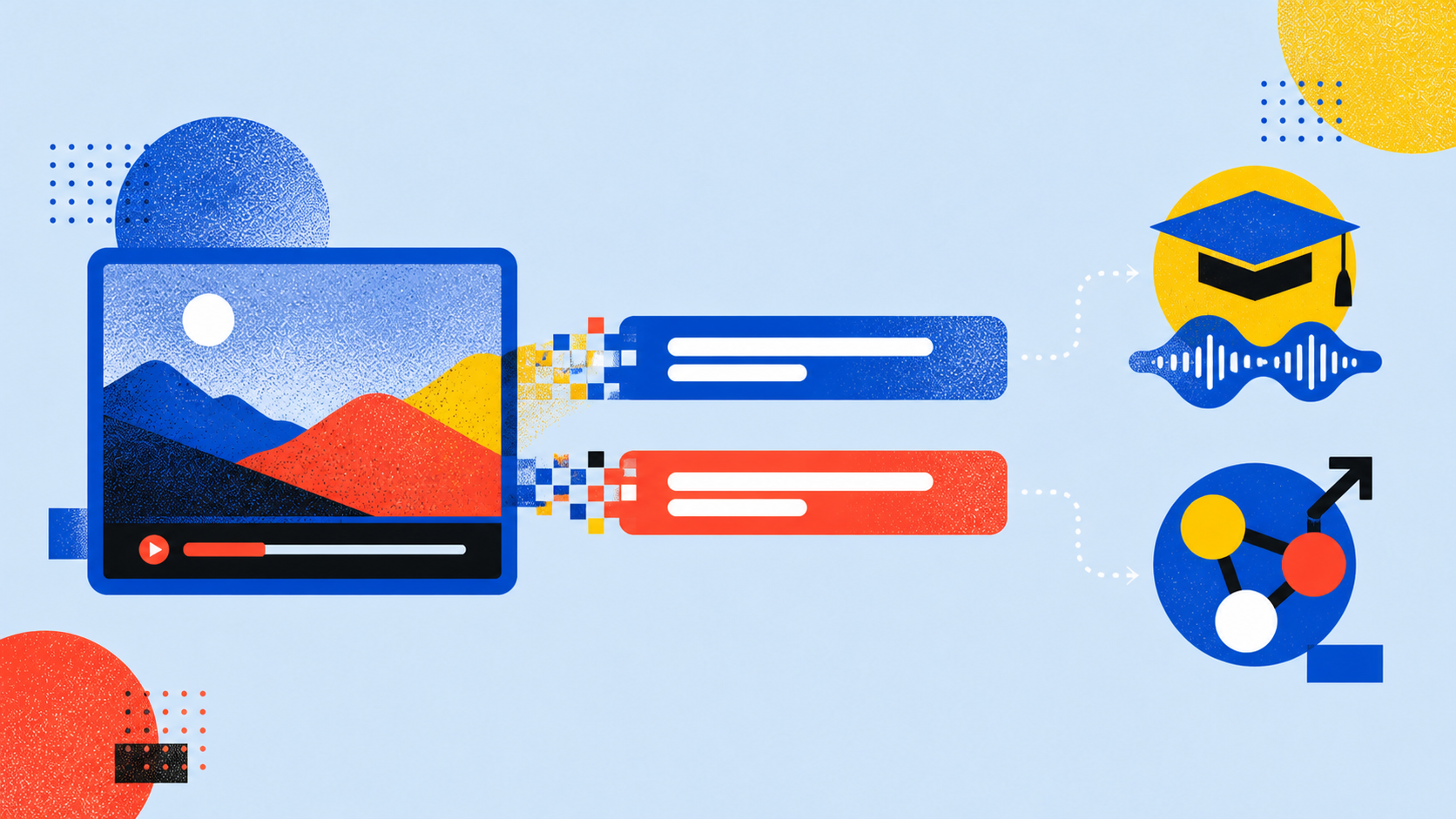
In the TransGull mobile app, long-press a subtitle after the video has been translated, then tap “Learn” to open learning mode. There is no need to copy the sentence or switch to another app: the source and translation you were just watching become the practice material.
You can repeat the original sentence to practise pronunciation, select a word to see its pronunciation and meaning in context, or ask AI a follow-up question. For example, you can ask why the sentence is phrased that way, whether there is a more natural alternative, or how to use the expression in another situation.
While watching a course, this makes it easy to practise an expression the teacher uses repeatedly. In an interview or travel video, you can start with the sentence that caught your attention. See the TransGull learning feature for a closer look.
After watching, you can share it with friends
If your only goal is to understand the video, keep the translation record and return to it later. For a YouTube video, you can also share the translated viewing record so someone else can follow the bilingual subtitles.
Local videos work a little differently: sharing sends access to the subtitles, so the recipient still needs to choose the same local video file to play the picture and subtitles together. When you want a finished subtitled version of your own local video, both the mobile and desktop apps can export a subtitled video. You can also save a separate subtitle file for further editing.
The next foreign-language video does not have to stay unwatched
The practical value of video subtitle translation is simple: it helps you miss fewer videos that are genuinely useful or interesting. When a course, interview, or tutorial has no English captions, paste the link into TransGull or choose the saved video, then set the source and target languages. The software handles the rest so you can keep watching.
You do not need to understand subtitle files, and you do not need to convert the video first. Turning a video you cannot follow into bilingual content that moves with the picture is enough.
Frequently asked questions
Can I translate a video that has no subtitles at all?
Yes. Choose AI speech recognition and TransGull will create source subtitles from the speech before translating them into your chosen language.
Can I use both YouTube videos and videos saved on my phone or computer?
Yes. Paste the link for a YouTube video or choose the file for a local video. Both can produce bilingual subtitles.
Can I see the original and translated subtitles together?
Yes. Once translation is complete, both lines appear with the video as it plays.
Can I share or export the translated video?
You can share the translated viewing record for a YouTube video. Sharing a local video sends the subtitles, so the recipient needs the same video file. Your own local video can also be exported with subtitles from either the mobile or desktop app.
Can I use a subtitle to study the language?
Yes. In the TransGull mobile app, long-press a subtitle and tap “Learn” to practise pronunciation, look up words, and ask AI follow-up questions about the sentence.